Overview
The EZView widget queries and downloads EQuIS reports and creates EIAs to automatically send reports. A primary purpose of the widget is to run the selected report and then export the report output to third party programs, such as Excel (.xls) workbooks, ArcGIS shapefiles (.shp), tab delimited (.txt) files and Google Earth (.kmz) files.
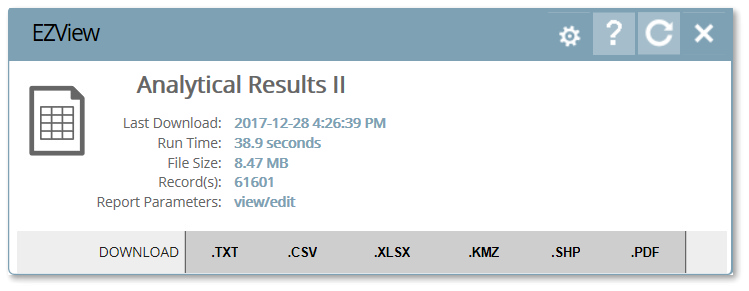
The EZView widget displays the report icon on the left. The report icon will include an envelope if an EIA is defined for the widget. The right side of the widget includes the following:
•The name of the selected report.
•Last Download – The date and time (end-user browser local time) that the report was last downloaded.
•Run Time – The run time (i.e., elapsed time) indicates how long it took the report to run the last time it was downloaded (excludes download time).
•File Size – The file size of the report output the last time it was downloaded.
•Record(s) – If applicable, the number of records in the tabular output of the report the last time it was downloaded.
•Report Parameters – If this feature is enabled in the widget properties, a "view/edit" link is available. The link will open the widget in maximized view. The maximized view will contain controls to view and edit the parameters for the given report, similar to the Report Parameter Editor. When this feature is enabled, clicking the download buttons at the bottom of the maximized view will run the report using the parameters selected without saving the report.
The bottom of the widget provides buttons that will run the report and then export the report data to a variety of output types (e.g., txt, csv, xlsx, shp, kmz) for import into third party programs for additional review and/or manipulation. The available export types depend on whether the report outputs tabular or non-tabular data. A non-tabular report will only display the button for the file type that it generates. For example, the "Google Earth: Locations" report only generates .kmz files, and therefore, only the .KMZ button will be available.
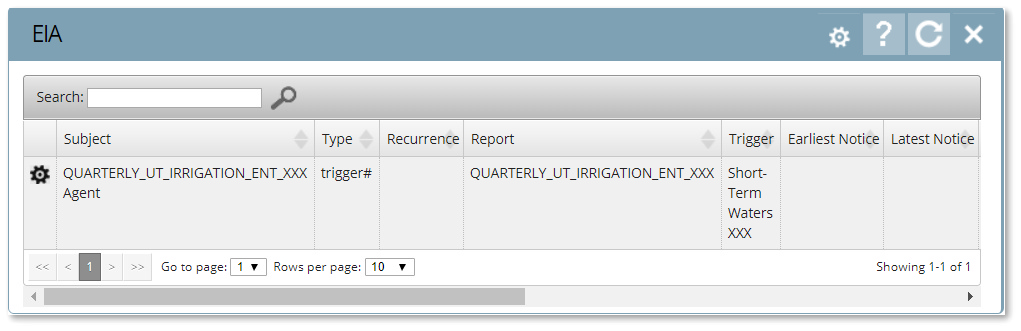
After EIAs are created in the EZView widget, the status of EIAs can be monitored using the EIA widget. The EIA widget has no specific properties that can be modified other than the widget title and color.
Exercise Scenario
For the Utah Location Group we want to compare the Irrigation Water Analytes group (which contains the known GKM contaminants) to the Short-Term and Long-Term Irrigation Waters action levels. We will use an EZView widget to generate a report in Excel. For any data that will be uploaded with new EDDs, we will set the EZView widget to trigger an EIA when the action levels are exceeded. We will also add an EIA widget to the dashboard to monitor EIA status.
|
Learn how to create and export analytical results using an EZView Widget, and to create |

|
Exercise Objectives |

•Build, Save and Export an Analytical Results Report with the EZView Widget
•Build Triggered and Scheduled EIAs with the EZView Widget
•Add an EIA Widget
Skills, Software and Permissions Required
•Internet Explorer 10 (or higher), Google Chrome, Mozilla Firefox or Microsoft Edge
•Editor permissions to desired facilities
•Editor permissions to desired dashboards and reports
•Viewer permissions to the groups and folders object type
•Viewer permissions to all non-administrator widgets
•Creator permissions on the dashboard, EDDs and reports object types
|
Objective: Build, Save and Export an Analytical Results Report |
The EZView widget can be used to build an Analytical Results Report. A set of report parameters can be saved as a User Report, which can then be downloaded to variety of file types.
1.Navigate to any desired dashboard in EQuIS Enterprise. Select Add Widget  from the Dashboard ribbon. Select the EZView widget. The widget will appear on the dashboard. Move the widget to the desired location on the dashboard. The report name displayed in the EZView widget will be the last report run by the user.
For this exercise, return to the "Gold King Mine <your initials>” dashboard and add an EZView widget. Move the widget to the right-hand column in the Reports section on the dashboard.
2.Select Modify Properties  from the EZView widget ribbon to open the Widget Editor window. The widget title can be modified as well as the color of the widget.
For this exercise, rename the widget to "Utah Irrigation Action Levels".
3.From the Data tab in the Widget Editor window, select the existing report name under Choose a report to import a different report. The Reports dashboard will open. Published reports for the selected EQuIS database can be viewed in either tiled or details view.
4.Select the desired Analytical Results report.
For this exercise, select the Action Level Exceedance with Parameters II report.
5.To change the report parameters, select Modify Properties next to the report name to open the Edit Report Parameters window.
6.Expand the appropriate nodes to select the desired parameters. If the desired parameter value is not visible from the drop-down list, go to the next page or increase the items per page being displayed. The search pane can also be used to find desired parameters. To select multiple parameters, hold the CTRL key while selecting parameters. After a parameter value has been modified, the selected value will display in green with an asterisk to the right. Default or previously selected values display in blue.
For this exercise, select the following parameters:
Parameter |
Selection |
|---|---|
Location> Group |
Utah |
Sample >Matrix |
WS |
Result> Analyte> Groups |
Irrigation Water Analytes |
Result> Unit |
ug/L |
Action Levels |
Long-Term Irrigation Waters, Short-Term Irrigation Waters |
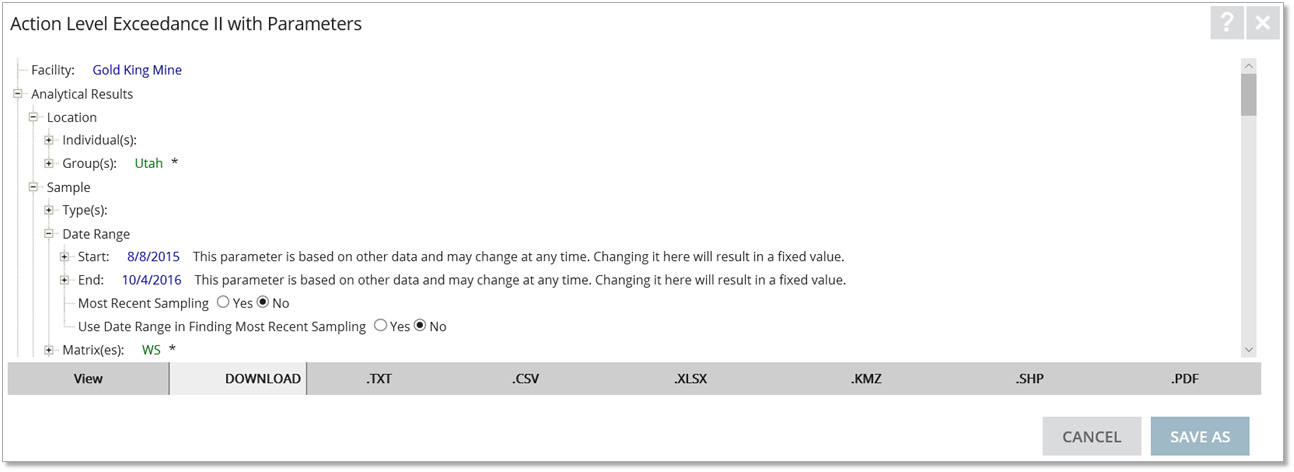
|
To view the report (either prior to or instead of saving), select View from the bottom of the Edit Report Parameters window. Note that the report opens in a separate grid window. |

7.Select the Save As button to save the parameters as a user report. A Save As window will appear, which provides the option to save to the current facility or all facilities. Change the Report Name as desired and select the Save As button to return to the Widget Editor window.
For this exercise, select the Save As button. Once the window opens, change the Report Name to "QUARTERLY_UT_IRRIGATION_ENT<YOUR INITIALS>” and keep the default option to save to the current facility. Select the Save As button to close the window and return to the Widget Editor.
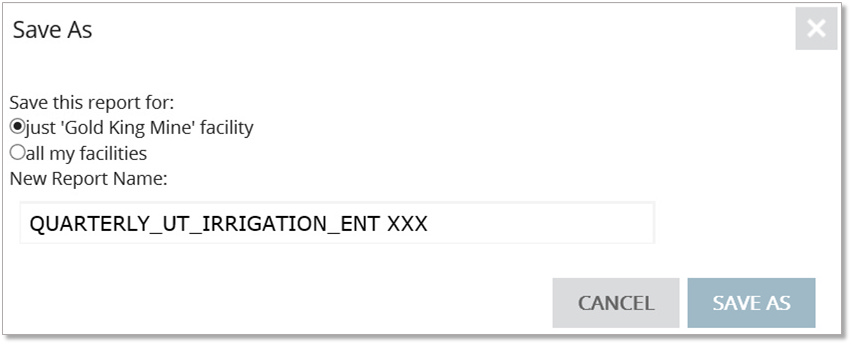
8.Select the Save button to return to the EZView dashboard. Note the EZView widget now displays the new report.
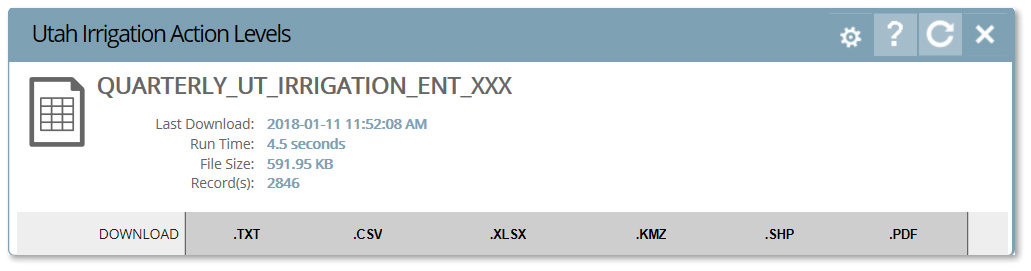
9.The new report displayed in the EZView widget can be run and downloaded in a variety of formats. To export to the desired format type, click on the appropriate file extension displayed on the bottom of the widget. The newly created file can either be saved or opened as desired.
For this exercise, export a report to Microsoft Excel by selecting .XLSX from the bottom of the EZView widget. Open the file to view in Excel.
|
Both the Widget Editor window and the Edit Report Parameters window can be closed without saving any changes by either selecting the Cancel button or |

|
Objective: Build Triggered and Scheduled EIAs with the EZView Widget |
EQuIS Information Agents (EIAs) are reports that are auto-generated when certain events occur, such as the exceedance of an action level, a specified date, or new data arriving to the system. Generate these reports from previously saved user reports and learn how to schedule EIA reports and send EIA reports to specified users. EIA notices can be viewed in the Notices widget or can be emailed to designated recipients.
|
Only one EIA can be applied to each EZView widget. If more than one EIA is created, only the last EIA will be active. If more than one EIA is needed, the specific EZView widget will need to be cloned and a separate EIA applied to each widget. |

Tasks
•Enable EIAs in an EZView Widget
•Build a Scheduled EIA
•Build an EDD EIA
•Build a Triggered EIA
Enable EIAs in an EZView Widget
1.Select Modify Properties from the EZView widget ribbon to open the Widget Editor window.
For this exercise, use the Utah Irrigation Action Levels EZView widget created in the previous exercise.
2.Select the EQuIS Information Agent tab in the Widget Editor window.
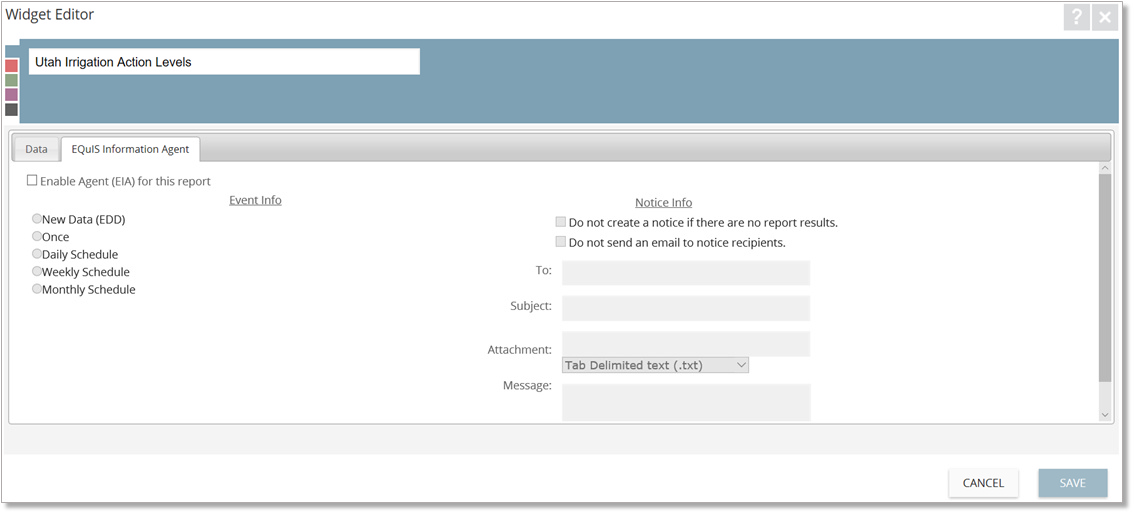
3.Select Enable Agent (EIA) for this report. The Notice Info will be automatically populated with the EZView report information and the user's email address.
Build a Scheduled EIA
Scheduled EIAs will send a report on a regularly defined interval.
1.Select at what regular interval the EIA should run:
•Once on a specified day
•Daily Schedule
•Weekly Schedule on a specified day
•Monthly Schedule on a specified date
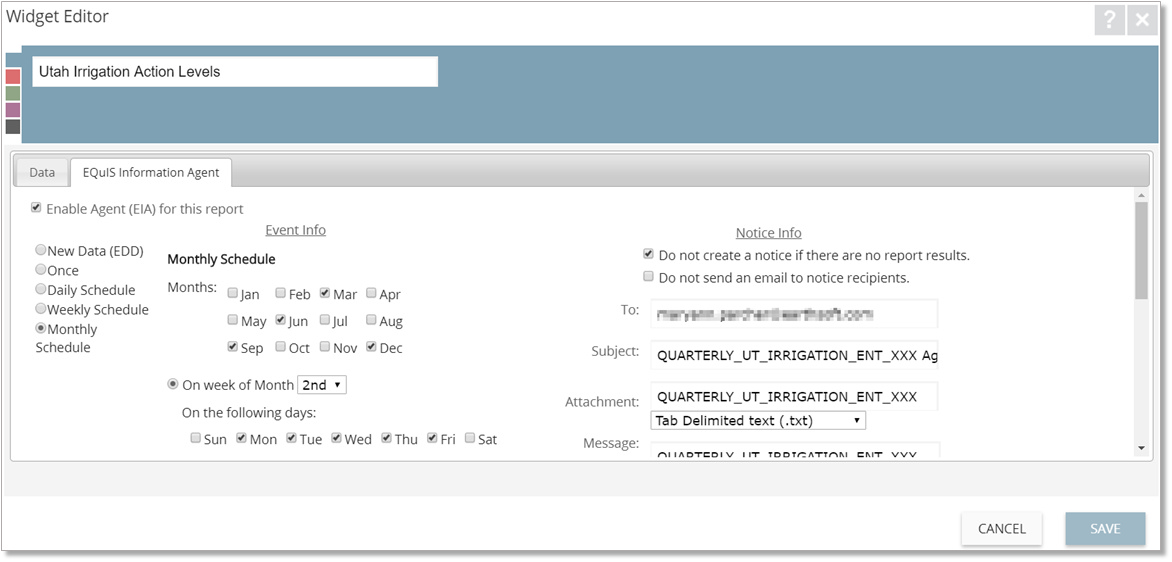
For this exercise, select Monthly Schedule.
2.Set the Event Info as desired. Different options will be available depending on the EIA interval selected in the previous step.
For this exercise, a quarterly sampling schedule will be defined for the second week of the month. Under Months, ensure that Mar, Jun, Sep and Dec are checked. Check the On week of Month radio button and set the drop-down menu to the 2nd week.
3.Under the Notice Info pane, determine if an email will be sent and then enter the email addresses of the desired recipients in the To field, and edit the Subject, Attachment and Message as desired. There is an option to not create a notice if the there are no report results.
For this exercise, check the Do not create a notice if the there are no report results option. The email information should already be set with the user and report information.
4.Select the Save button to save the new agent and to return to the dashboard window.
Build an EDD EIA
EDD EIAs will send a notice when new data is successfully loaded into EQuIS via EQuIS Enterprise EDP.
1.Select Modify Properties from the EZView widget ribbon to open the Widget Editor window.
For this exercise, use the Utah Irrigation Action Levels EZView widget created in the previous exercise.
2.Select the EQuIS Information Agent tab in the Widget Editor window.
3.Select Enable Agent (EIA) for this report. The Notice Info will be automatically populated with the EZView report information and the user's email address.
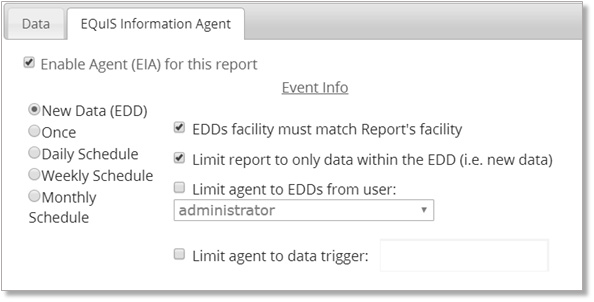
4.Select New Data (EDD).
5.In the Event Info section, choose the following Event Info as desired:
a.EDDs facility must match Report’s facility: If checked, limits the generated report to run only when the facility defined in the report matches the facility of the EDD. If this box remains unchecked, the generated report will run upon acceptance of any EDD, regardless of facility.
b.Limit the report to only data within the EDD (i.e. new data): If checked, limits the generated report only includes new data. If this box remains unchecked, the generated report will display all data in the EQuIS database and incoming EDD matching the previously defined criteria.
c.Limit agent to EDDs from user: If checked, limits the generated report to run only when the accepted EDD comes from a specific user. If the box remains unchecked, the generated report will run upon acceptance of any EDD, regardless of user.
d.Limit agent to data trigger: If checked, generates a report when new EDDs are successfully loaded into EQuIS Enterprise and some other defined criteria is also met.
For this exercise, check the EDDs facility must match Report’s facility and Limit the report to only data within the EDD (i.e. new data) options.
6.Under the Notice Info pane, determine if an email will be sent and then enter the email addresses of the desired recipients in the To field, and edit the Subject, Attachment and Message as desired. There is an option to not create a notice if the there are no report results.
For this exercise, check the option to not create a notice if the there are no report results. The email information should already be set with the user and report information.
7.Select the Save button to save the new agent and to return to the dashboard window. The EIA will be set to deliver the chosen report every time a new EDD arrives via EQuIS Enterprise EDP.
Build a Triggered EIA
Triggered EIAs will send a report when new EDDs are successfully loaded into EQuIS Enterprise and some other defined criteria is also met.
1.Select Modify Properties from the EZView widget ribbon to open the Widget Editor window.
For this exercise, use the Utah Irrigation Action Levels EZView widget created in the previous exercise.
2.Select the EQuIS Information Agent tab in the Widget Editor window.
3.Select Enable Agent (EIA) for this report. The Notice Info will be automatically populated with the EZView report information and the user's email address.
4.Select New Data (EDD).
5.In the Event Info section, select Limit agent to data trigger. Select other Event Info options as needed.
6.Review the Define Trigger options in the Select a Trigger drop-down menu and select a trigger as desired:
a.Report triggers itself: If EQuIS Enterprise EDP accepts an EDD, this trigger will generate a report if data in the EDD matches the parameters in the report defined on the Data tab of the EZView widget.
b.Action Level Exceedance (by EDD): If EQuIS Enterprise EDP accepts an EDD, this trigger will generate a report if any data accepted in the EDD exceeds the selected action level(s).
c.Analyte Exceedance: If EQuIS Enterprise EDP accepts an EDD, this trigger will generate a report if any data accepted in the EDD exceeds the selected analyte.
d.Location Parameter Exceedance: If EQuIS Enterprise EDP accepts an EDD, this trigger will generate a report if any data accepted in the EDD exceeds the selected location parameter(s).
e.Sample Parameters (Exceedance): If EQuIS Enterprise EDP accepts an EDD, this trigger will generate a report if any data accepted in the EDD exceeds the selected sample parameter(s).
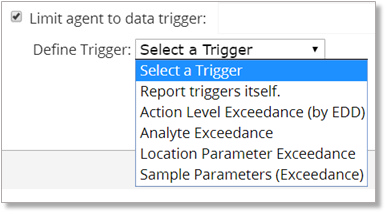
For this exercise, select the Action Level Exceedance (by EDD) trigger option.
7.If necessary, select the  icon to define the parameters of the trigger.
For this exercise, select the icon to define the parameters of the trigger.
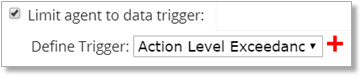
8.From the Define Trigger Report Parameters window, define the parameters as necessary.
For this exercise, expand the Action Level node and select Short-Term Irrigation Waters.
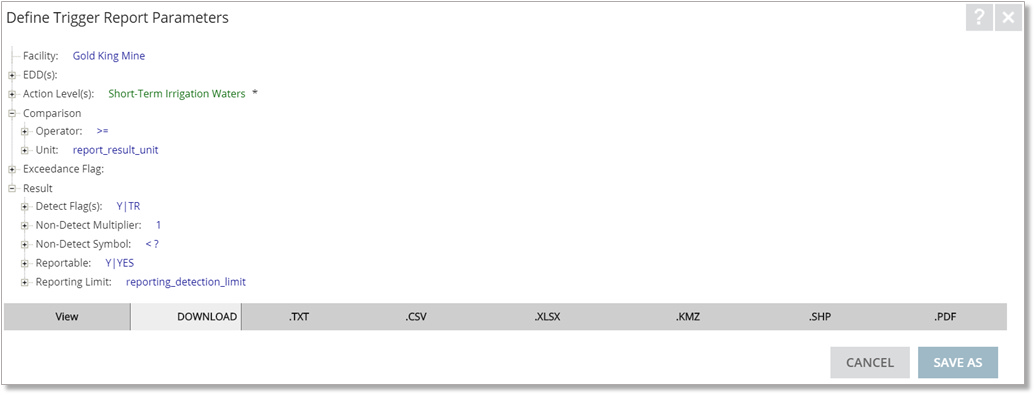
9.Select the Save As button to save the Trigger Report parameters. A Save As window will appear, which provides the option to save to the current facility or all facilities. Change the Report Name as desired and select the Save As button to return to the Widget Editor window.
For this exercise, select the Save As button. Once the window opens, change the Report Name to "Short-Term Waters <your initials>” and keep the default option to save to the current facility. Select the Save As button to close the window and return to the Widget Editor window.
10.Under the Notice Info pane, determine if an email will be sent and then enter the email addresses of the desired recipients in the To field, and edit the Subject, Attachment and Message as desired. There is an option to not create a notice if the there are no report results.
For this exercise, check the Do not create a notice if the there are no report results option. The email information should already be set with the user and report information.
11.Select the Save button to save the new agent and to return to the dashboard window. The EIA will be set to deliver the chosen report every time a new EDD arrives via EQuIS Enterprise EDP and the trigger conditions are met.
|
Objective: Add an EIA Widget |
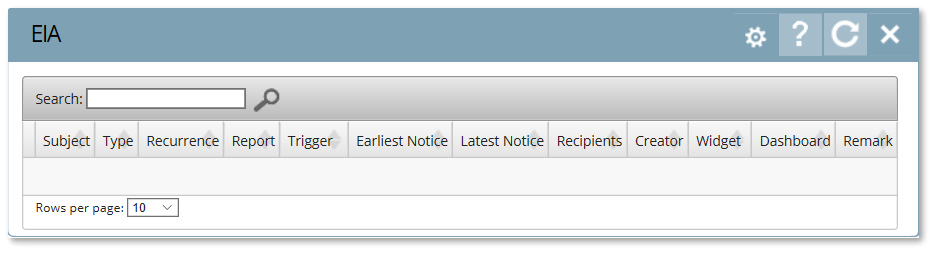
The EIA Widget shows a list of the currently configured EQuIS Information Agents.
1.Navigate to any desired dashboard in EQuIS Enterprise. Select Add Widget from the Dashboard ribbon. Select the EIA widget. The widget will appear on the dashboard and display existing EIAs. Move the widget to the desired location on the dashboard.
For this exercise, return to the "Gold King Mine <your initials>” dashboard and add an EIA widget. Move the widget to the right-hand column in the Reports section on the dashboard below the Utah Irrigation Action Levels EZView widget. Note that only the Trigger EIA is present in the EIA widget as the scheduled EIAs were overwritten by the trigger EIA.